

BCPoker Desktop Client Is Live for Mac and Windows


BCPoker has moved beyond browser-only access on desktop with the launch of a dedicated app for Windows and Mac. Until now, desktop players relied on a browser tab, while mobile users already had a native app experience.
The new client is built to give tournament and cash game players a smoother, more reliable way to play on desktop - better stability, quicker performance, and none of the slowdown that comes with browser tabs. If you've already played BCPoker on mobile, most of what's inside will feel familiar. Here's what's actually new, and what's just now available in a proper desktop app.
BCPoker's New Desktop Client for Windows and Mac
BCPoker built its own standalone PC client from the ground up, made specifically for players who multi-table and don't want their setup fighting them.
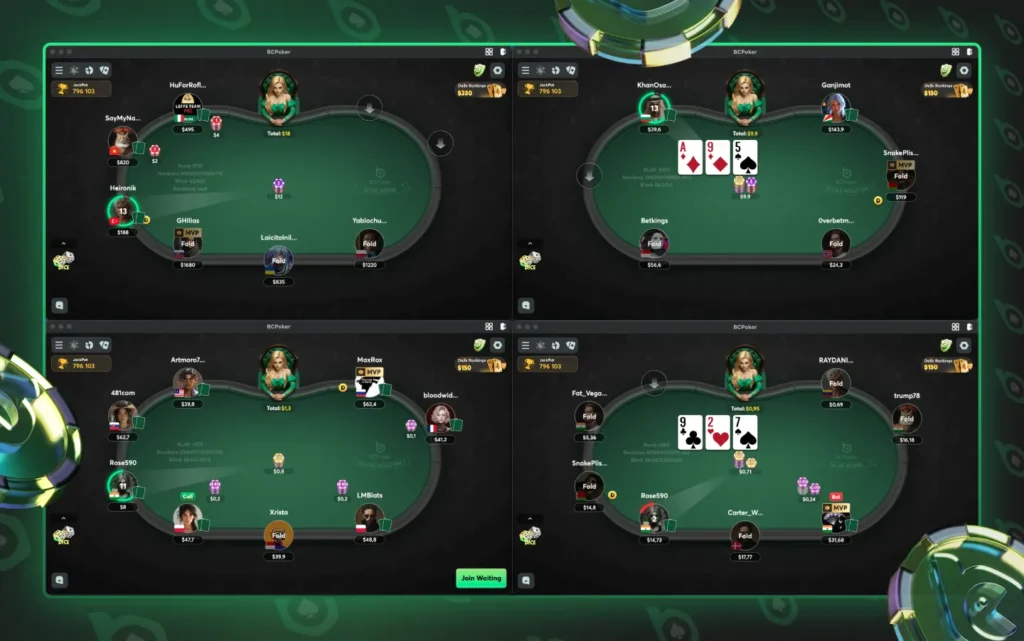
4-Table Multi-Tabling With Auto-Tile
Multi-tabling itself isn't new to BCPoker. What's new is running it through a dedicated desktop client instead of a browser tab, with Auto-Tile handling the layout for you automatically. Run up to 4 tables at once on a single screen, whether you're deep in cash games or juggling multiple tournaments, and your layout stays clean without manually dragging windows every time a table closes.
Faster and More Stable
The client cuts out browser lag entirely. If a background tab has ever frozen your table mid-hand, this update is built to prevent that, with quicker load times and steadier performance during busy sessions.
Seamless Play Across Desktop and Mobile
The new desktop client complements BCPoker's existing mobile application, bringing desktop up to speed with a platform players have already been using on their phones for a while.
Users can now multi-table from a desktop setup at home while continuing to access the same account through mobile when away from their computers, with no gap between the two experiences.
Available downloads:
macOS (Apple Silicon): Optimized for M1/M2/M3 Macs
macOS (Intel): Separate build for Intel-based Macs
Windows: Native PC client
iOS / Android: Dedicated app and direct APK download
App Store / Google Play: Standard mobile listings
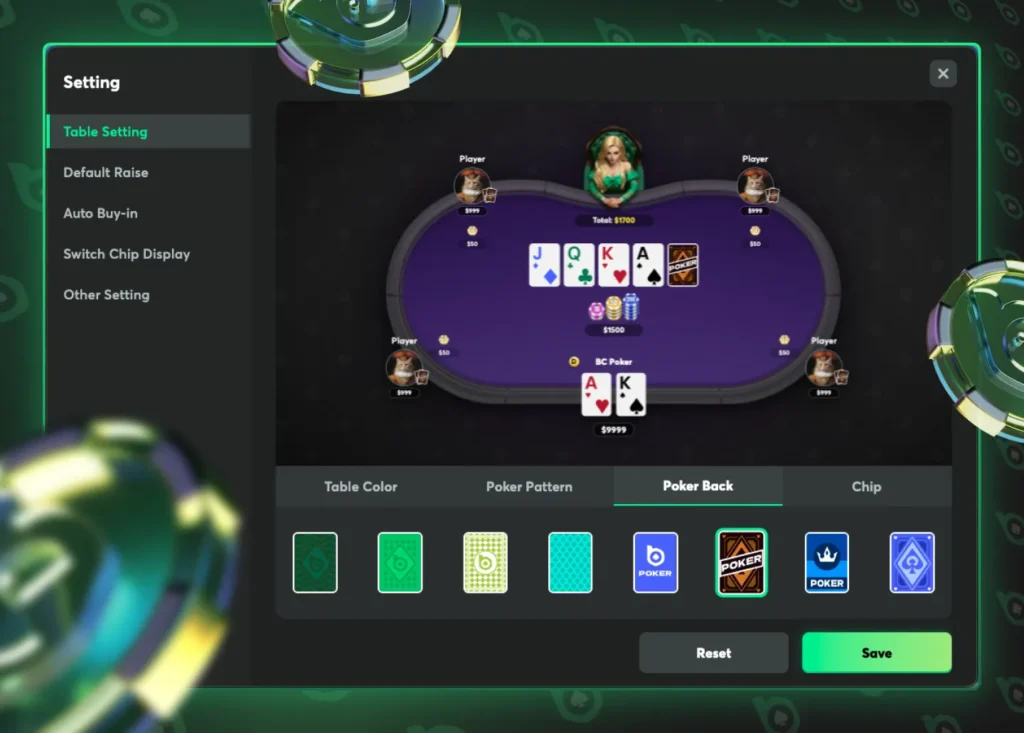
Full Table and Game Customization
Once you're in, the Settings menu lets you personalize almost every part of how your table looks and plays.
Table Settings: Color, Cards, and Chips
Table Color: Change the felt color to whatever's easiest on your eyes over long sessions
Poker Pattern: Adjust the table's background texture
Poker Back: Choose from multiple card back designs, including branded BCPoker options
Chip: Change how chip stacks display at the table
Default Raise and Auto Buy-In
Preset your default raise sizing so you're not typing a bet size every hand, a real time-saver when you're multi-tabling and need to act fast. Auto Buy-In takes this further by automatically applying a fixed buy-in amount whenever you sit at a new table, so you skip the manual top-up every time.
Switch Chip Display
Toggle how chip values are shown at the table, whether that's total value or big-blind format, based on how you prefer to track your stack mid-session.
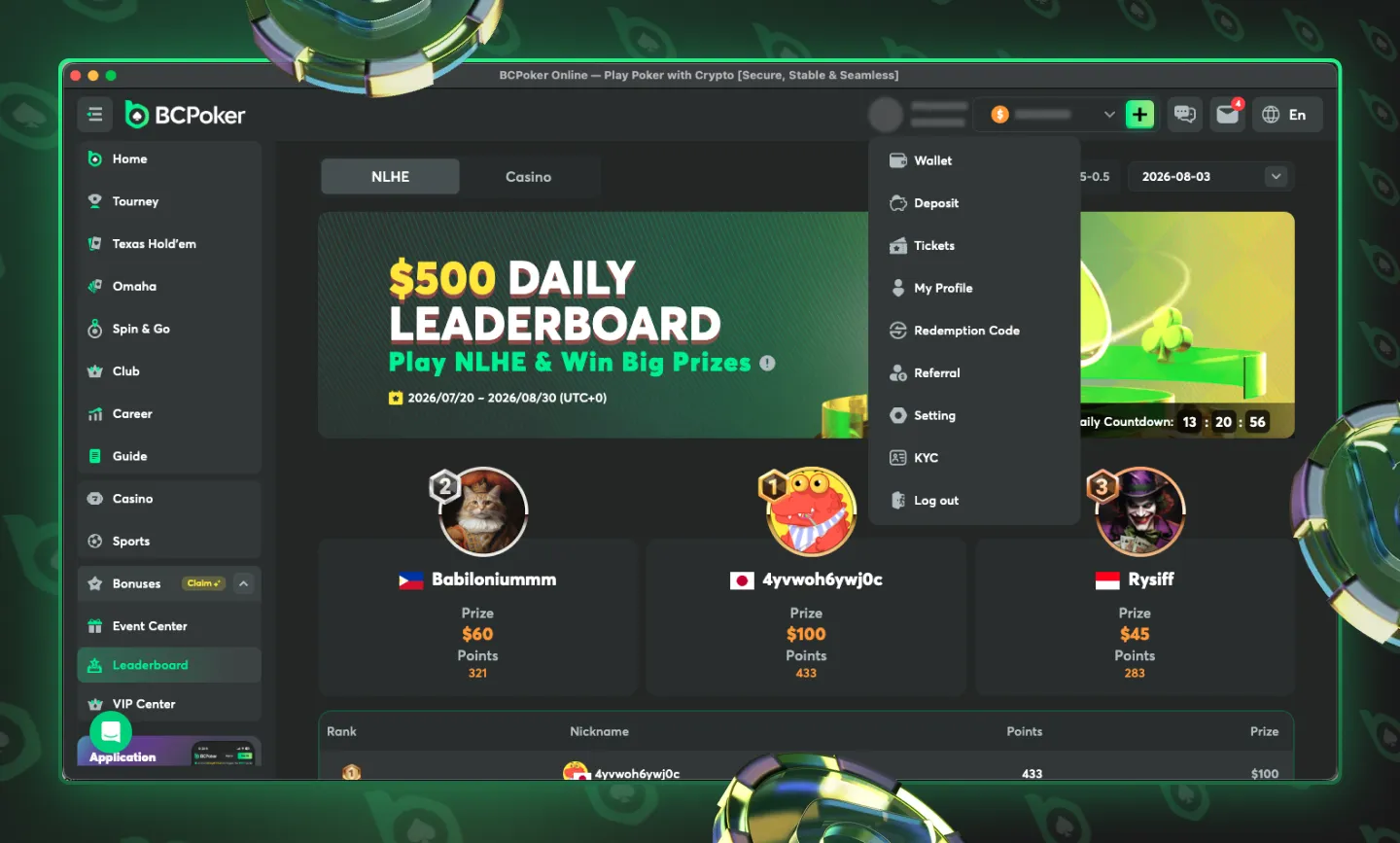
Your Account Menu: Wallet, Rewards, and Settings in One Place
Click your profile icon in the top right corner, and you'll find nine sections covering your entire account.
Menu Item | What It Does |
|---|---|
Wallet | Track your balance and transaction history |
Deposit | Jump straight into the deposit flow from anywhere in the client |
Tickets | View tournament tickets and freeroll entries earned through promotions |
My Profile | Your username, player ID, and account details |
Redemption Code | Enter promo codes for bonus cash, tickets, or rewards |
Referral | Get your referral link and track invite rewards |
Setting | Full table, card, chip, and buy-in customization |
KYC | Identity verification, typically required before withdrawals |
Sign up to BCPoker and set up your account today
How to Get Set Up
Register your BCPoker account if you haven't already
Download the desktop client for your device (Windows, Apple Silicon, or Intel Mac)
Log in and head to Settings to customize your table, cards, and buy-in preferences
Complete KYC early through the account menu to avoid withdrawal delays later
For the full platform breakdown, check our BCPoker review. Looking for a sign-up offer? See our BCPoker bonus code page for the latest promo.
About the Editor

Since early 2025, I've covered iGaming promotions, online poker platforms, and player stories for SomuchPoker. I discovered poker at 14 during the poker boom, and I've played cash games, online tournaments, and live events ever since.
Related News
 NewsLive Poker
Scheduled Maintenance: Live and Player Profiles Temporarily Offline
Somuchpoker is moving to a new server. Live and Player Profiles will be offline for a few days. Here is what to expect and when we are back.
 NewsOnline PokeriGaming
Road to Triton Cyprus: Win a $25,000 Seat at Titi Poker
Join the Road to Triton Cyprus at Titi Poker. Start free on Oct 6, climb the satellite ladder and win one of 3 guaranteed $25,000 tickets.
 NewsOnline PokeriGamingPromotion
GGPoker and Natural8 $18M October Giveaway
Win your share of $18M in the GGPoker and Natural8 giveaway this October. Cash drops, Halloween Party, leaderboards - plus a welcome bonus.
 NewsOnline PokeriGaming
Andrii Novak Wins the GGPoker WSOP Online Main Event for $3.93M
Andrii Novak beats Simon Beckmann to win the 2026 GGPoker WSOP Online Main Event for $3.93M. Full final table results, payouts and stats.
 iGamingNews
PokerStars B2B Network Opens Its Doors: A Game-Changer for Online Poker
The PokerStars B2B network is officially open. Discover how this new white-label platform and shared liquidity will change the online poker industry.
 NewsOnline PokerLive PokeriGaming
QQPK Freeroll: Win a Poker Dream Malaysia Seat + $800
Win a MYR 3,200 Poker Dream Malaysia Main Event seat + $800 in the free Somuchpoker freeroll on QQPK. Sept 27 - sign up with code SMPBONUS.